Capture in one tap with the widget and Quick Settings tiles
Add the Noodle widget to your home screen, put Record, Photo and Note tiles in the pull-down panel, or keep a capture notification. None of them ever show your notes.
On this page
Noodle has three shortcuts that work without opening the app first: a home-screen widget, three Quick Settings tiles and an optional notification. All three show only button labels and a count, never what you saved.
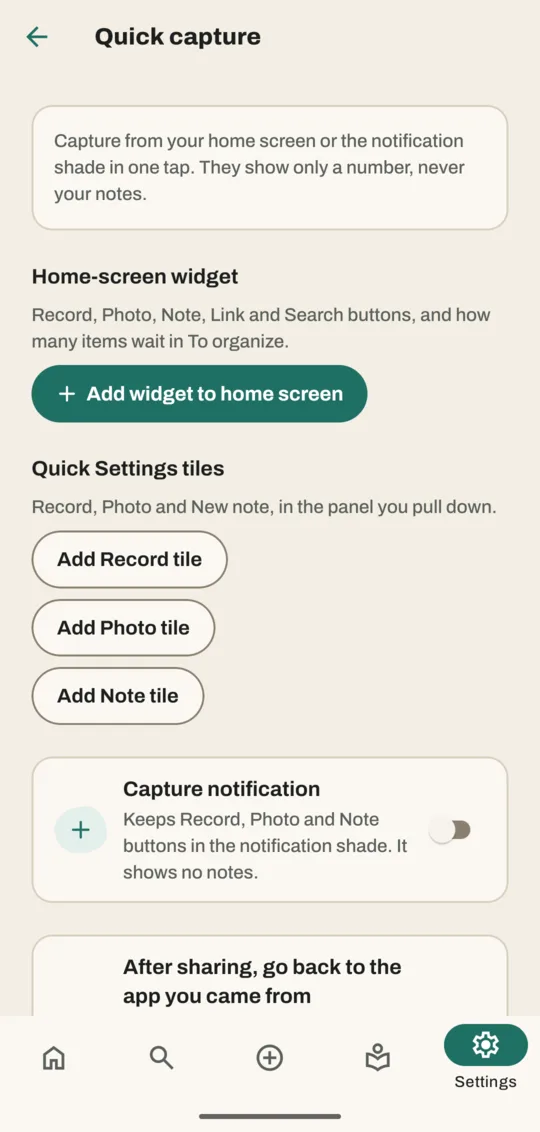
Add the widget to your home screen
- Go to Settings → Quick capture.
- Tap Add widget to home screen. Your home screen app shows a preview.
- Tap Add (the wording depends on your phone). The widget appears on your home screen.
If your home screen app can't add it from there, Noodle says so. Add it the usual way instead: touch and hold an empty spot on your home screen, tap Widgets, find Noodle Assistant and drag Quick capture into place.
The widget grows with its size. Small, it has Record and Photo. Wider, it adds Note and Link. Taller still, it adds Search and a count such as "4 to organize", which opens To organize.
Add the Quick Settings tiles
- Go to Settings → Quick capture.
- Tap Add Record tile, Add Photo tile or Add Note tile, and confirm in Android's message. Noodle says Tile added.
- Swipe down from the top of your screen to see the tile in the panel.
The tiles are Record voice note, Take photo and New note. The add buttons need Android 13 or newer. On older phones, or if a tile doesn't show, swipe down twice, tap the pencil to edit the panel, then drag the Noodle Assistant tiles in.
Turn on the capture notification
- Go to Settings → Quick capture.
- Turn on Capture notification. If Android asks to allow notifications, allow them. A silent notification with Record, Photo and Note stays in your notification shade.
It's off by default. Turn it off the same way.
What each button does
| Button | What happens |
|---|---|
| Record | Opens the record screen and starts recording |
| Photo | Opens the camera; the photo goes onto the Save page |
| Note | Opens the Save page with the keyboard ready |
| Link | Saves the link you copied last (asks Save this link? first) |
| Search | Opens Search |
Everything lands on the Save page, where you can add more and tap Done to file it.
Good to know
- The widget and tiles never show note text, titles or photos. Someone glancing at your phone sees only the buttons and a number.
- A link or message that just opens Noodle can't start the microphone or camera on its own. Only the widget, tiles and notification can.
Related
Don't have Noodle yet?
Free for Android. No sign-up, and everything stays on your phone.