Open a save: watch, read, edit and plan from its screen
What a save looks like when you open it: its category and tags, its parts, the video player and reader, and the buttons for editing, reminders, Plan it and sharing.
On this page
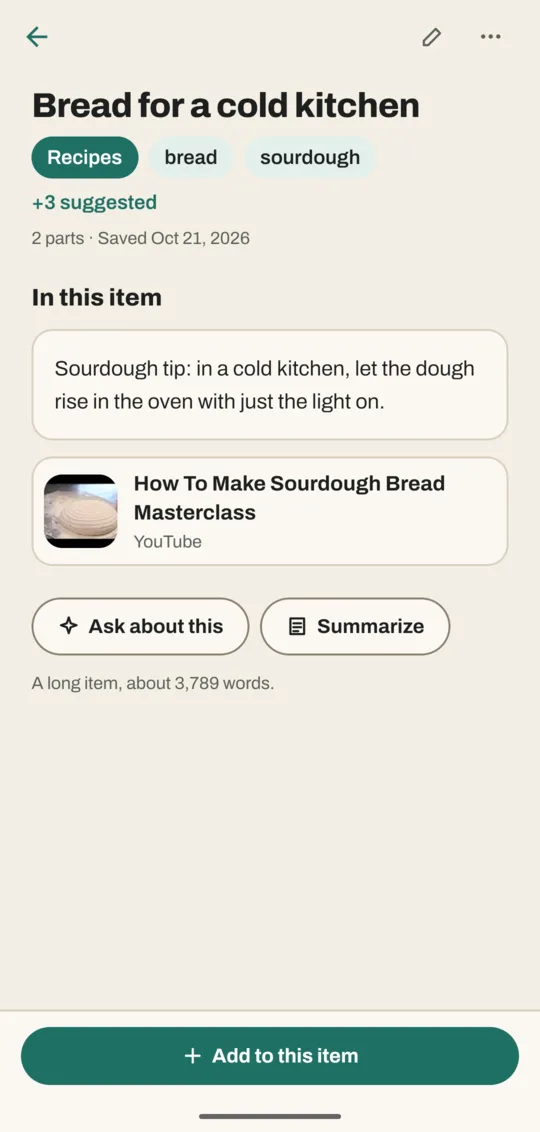
Tap any save in Home, Search or the Library and its own screen opens. It shows the save's content first, with its category and tags just under the title.
What's on the screen
- The title, then the category and tags. Tap that line to change them. +3 suggested means Noodle has tag ideas waiting.
- In this item: each part of the save. A note shows its text. A video, article, PDF or voice note is a row you tap to open in full.
- Ask about this and Summarize, once Ask Noodle is downloaded. See summaries.
- Add to this item, the bar at the bottom, opens the Edit page so you can add more parts.
Phone numbers and email addresses in the text are links. Tap one for Call, Message, Send email or Copy. You can also hold any text to select and copy it.
Watch a video or read an article
- Tap the video, article, PDF or voice note part. It opens on its own screen.
- A video plays at the top, with everything it says written out below, line by line.
- To look for a word, type it in Find in transcript. Only the lines with that word stay on screen, with a count such as "3 lines match".
- Tap a line to play the video from that moment.
Articles and PDFs open as pages to read; the find box is only there for videos and voice notes. The button in the top corner opens the original in YouTube, Instagram or your browser, or a PDF or your own video in another app.
Change the category, tags or note
- Tap the category and tags line under the title. The Category and tags sheet opens.
- Tap a different category, tap tags to add or × to remove them.
- Tap Save.
To change the title, edit a note or reorder parts, tap the pencil (Edit item) at the top.
Use the ⋯ menu
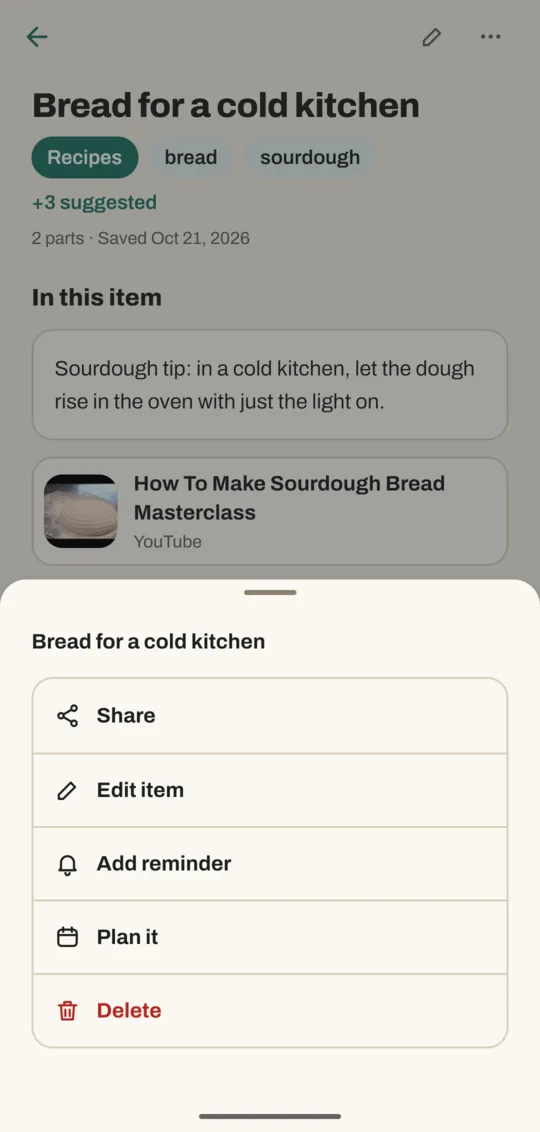
Tap ⋯ at the top right for more:
| Button | What it does |
|---|---|
| Share | Sends the save's text or link to another app |
| Edit item | Opens the Edit page (same as the pencil) |
| Add reminder | Pick a date (and a time, if you like) to be reminded about this save |
| Plan it | Adds it as a task to a day in Plan |
| Delete | Removes it from Noodle after asking |
Good to know
- A save that couldn't be read shows why, such as Waiting to fetch with the reason, and Noodle tries again later. Your note is kept either way.
- A page Noodle could only partly read says Only part of this page was saved. Open it in your browser to read the rest.
Related
Don't have Noodle yet?
Free for Android. No sign-up, and everything stays on your phone.